CHROMEBOOK GAMING
FPS Games for Chromebook: Free Browser Shooters That Run Well
The best FPS games for Chromebook run right in Chrome: no download, no install, nothing to fill your storage. xFPS is one, free with guest play and a Very low graphics setting made after testing on 2-core Chromebooks. Here is why the browser is the way to go, and how to make a shooter run smoothly on yours.
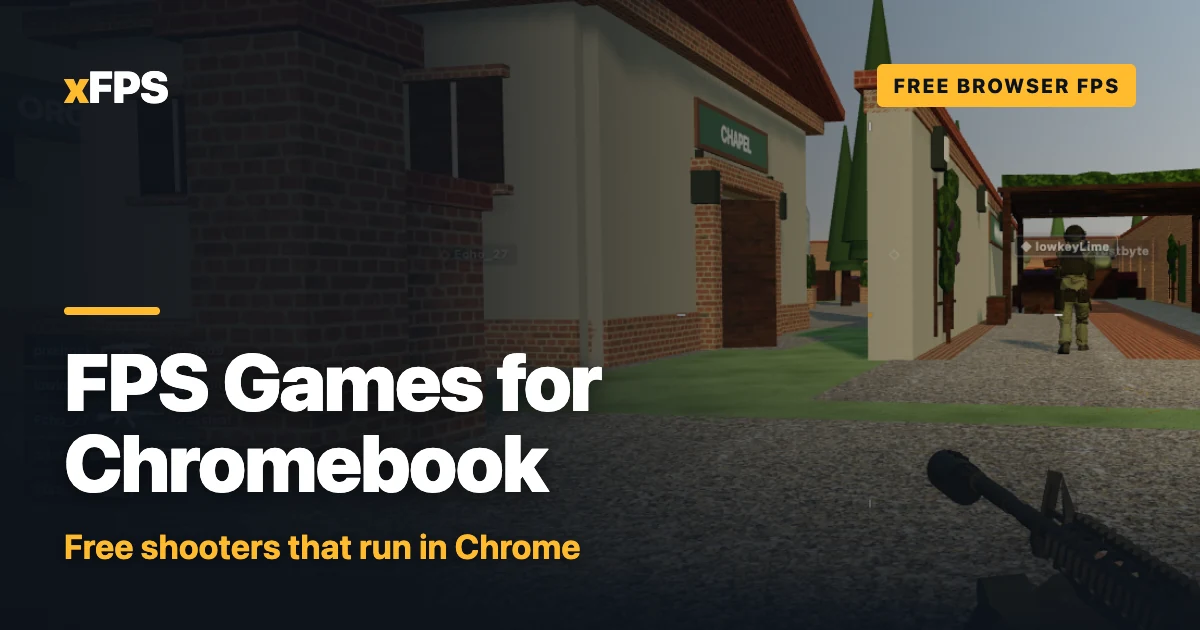
Play on your Chromebook nowFree in Chrome. No download, no account needed.
Play Free-for-allCan you play FPS games on a Chromebook?
Yes, but not the way you would on a Windows gaming PC. Here is what a Chromebook can and can't do in 2026:
- Steam is gone. Google's Steam for Chromebook beta ended on January 1, 2026, and games installed through it stopped working. It never left beta.
- Android shooters work on many models, through the Play Store. Most are built for phone touchscreens, so on a laptop with a keyboard and touchpad the controls can feel like an afterthought.
- Cloud gaming streams bigger shooters to Chrome. It needs a fast, steady connection, and the service or the games usually cost money.
- The hardware is modest. Most Chromebooks use low-power processors and integrated graphics, many with just 4 GB of memory. That is fine for school work and video, and it is the main reason heavy PC shooters were never a good fit.
That leaves one option that is free, instant and made for exactly this machine: a shooter that runs in the browser.
Free FPS games on Chromebook, no download
A Chromebook is built around Chrome, and Chrome can run 3D games through WebGL, the graphics layer built into the browser. A browser FPS is just a web page to your Chromebook, so:
- Nothing installs. No Play Store, no storage used beyond the browser's cache, no Linux setup.
- You play the real thing. The same game and the same online lobbies as players on Windows, Mac and phones.
- Updates are automatic. Reload the tab and you have the latest version.
xFPS: a first-person shooter built to run on Chromebooks
xFPS is our game, so read this part as the developer talking, checked against the code. It plays like a modern military shooter: sprint, slide, slide-cancel, aim down sights and fast time-to-kill. When our anonymous performance reports showed 2-core Chromebooks struggling, we added a whole graphics tier for them (more on that below).
You can play as a guest straight away. Modes on the Play screen:
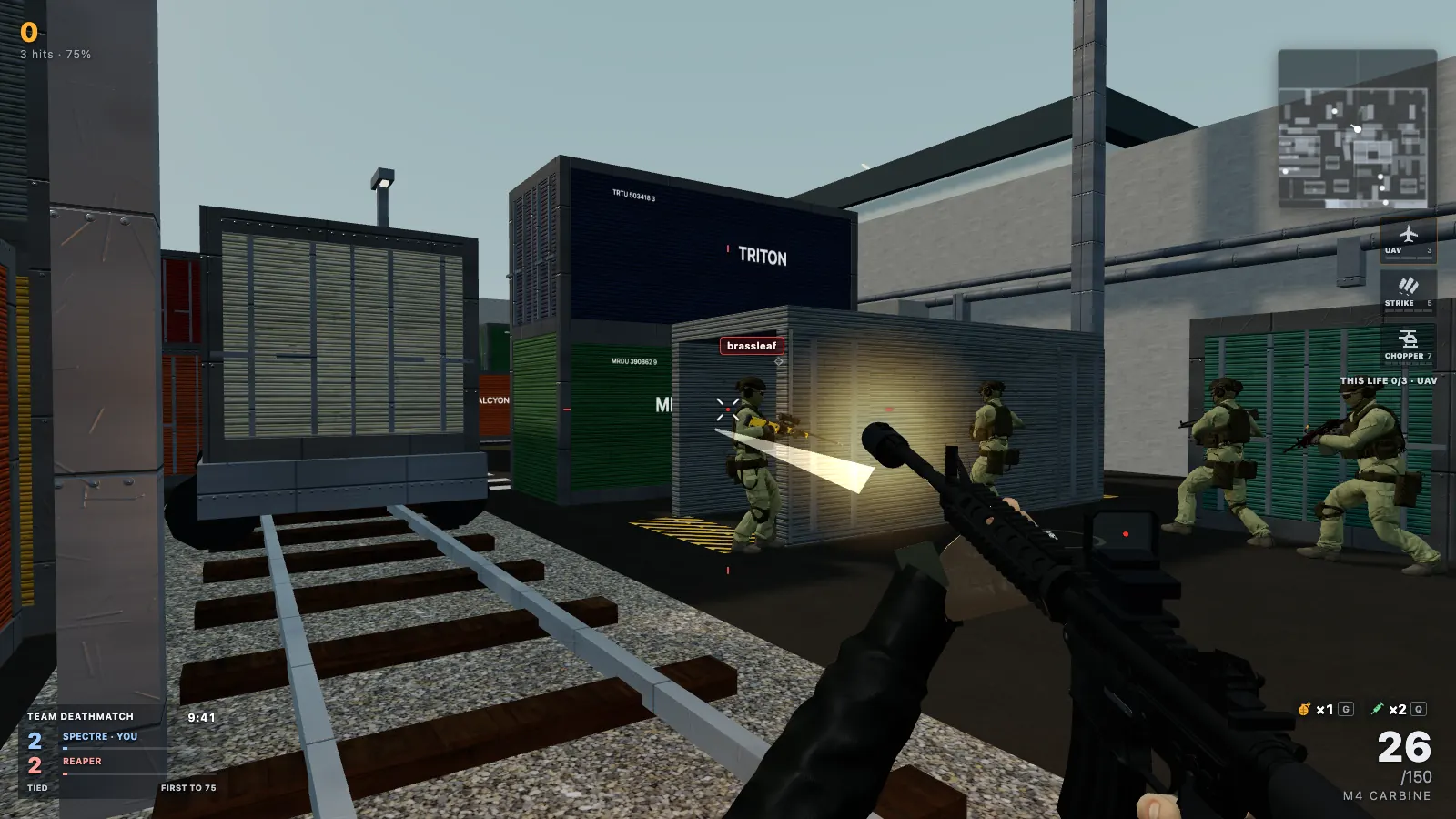
- Free-for-all and Team Deathmatch: 12 players, 7 minutes, bots in empty seats until people join.
- Search & Destroy and Cyber Attack: 6v6 round modes with one life per round in S&D (see our Search and Destroy guide).
- 1v1 Duel and 2v2 Gunfight: small fights, and the lightest way to play on a weak Chromebook. More in 1v1 FPS online.
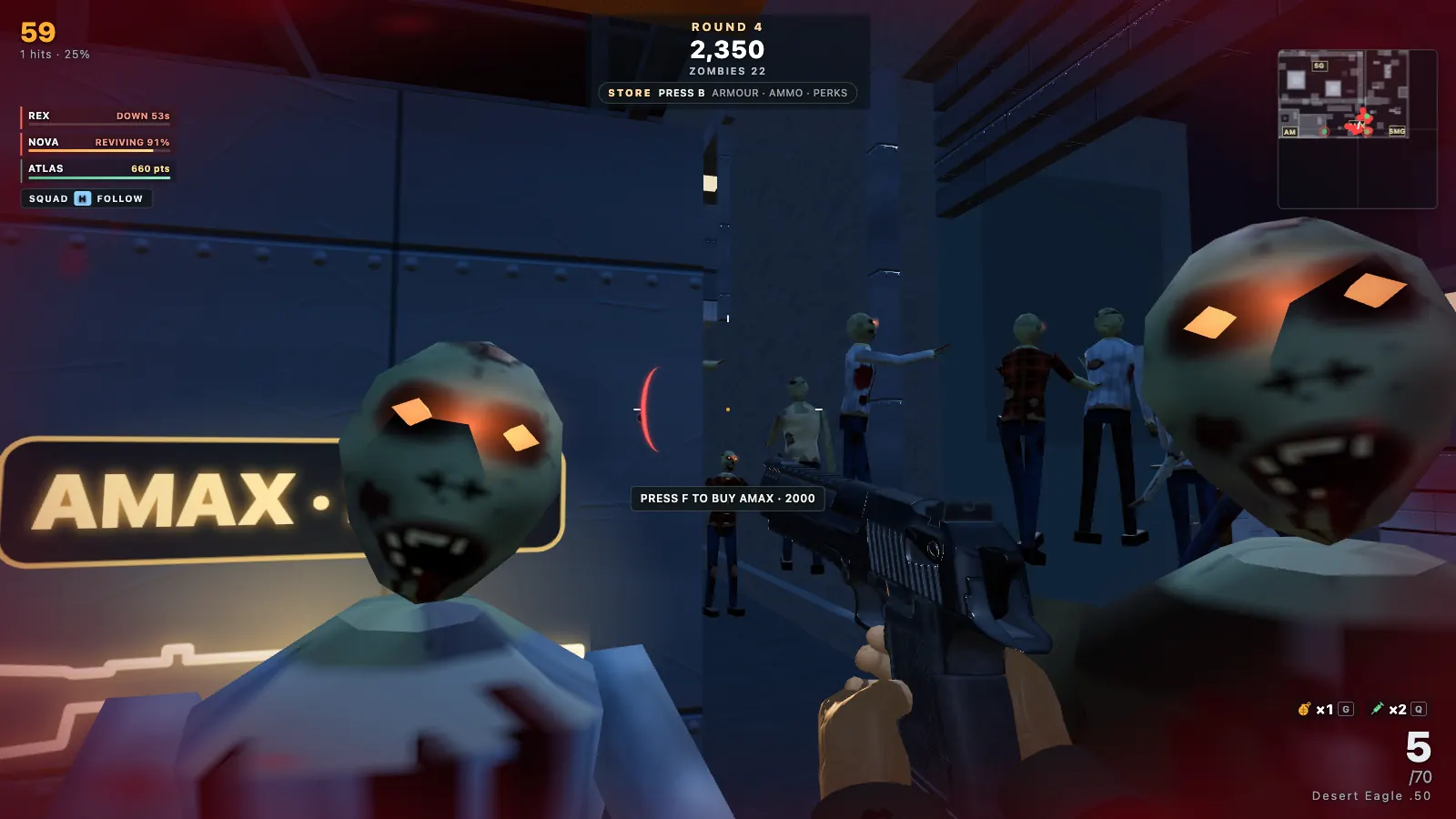
- Prop Hunt with at least two human players, and round-based Zombies for one to four survivors (zombies in the browser).
- Parties of up to six with an invite link, plus custom matches with your own rules.
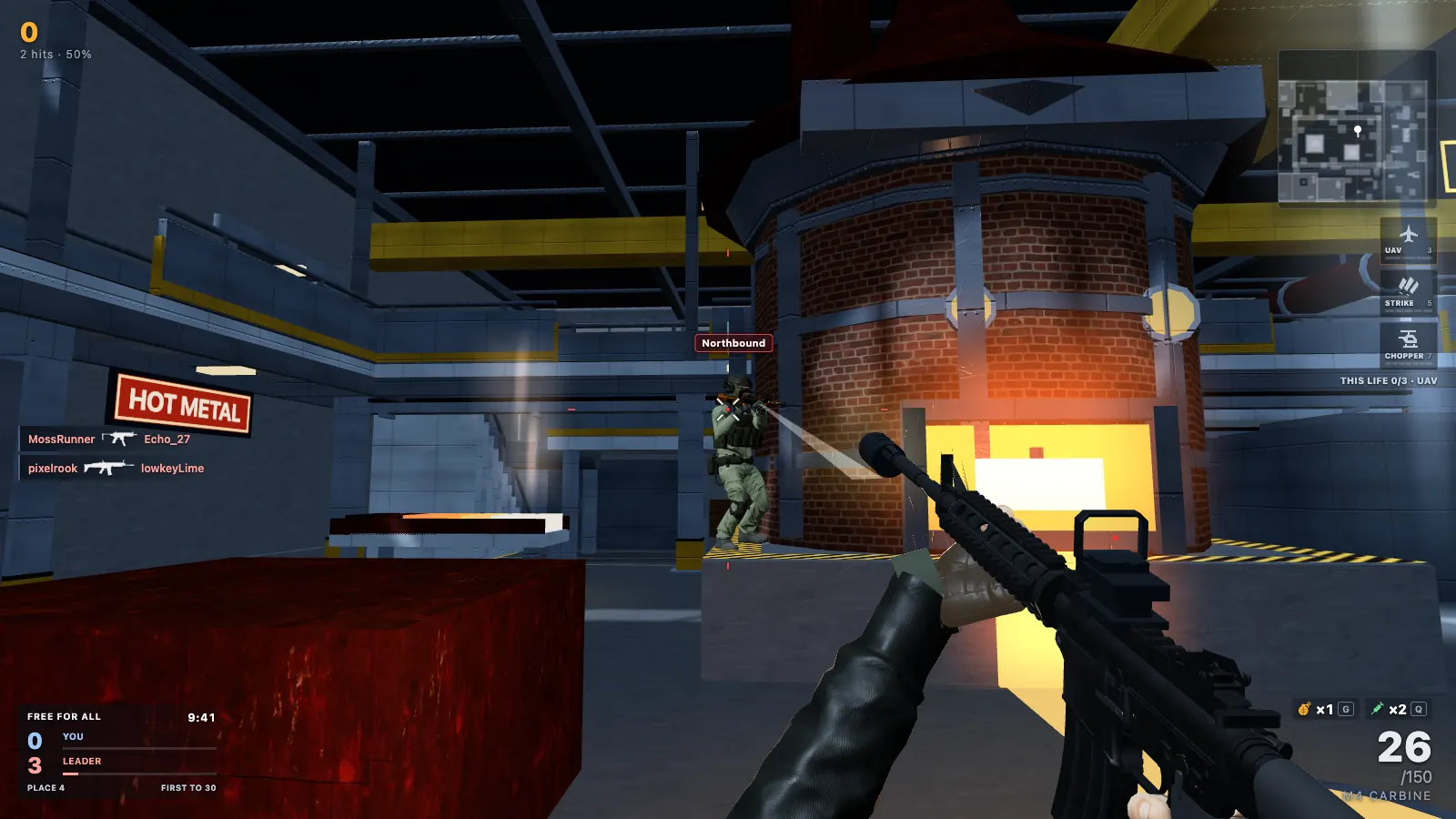
Lightest way to startA 1v1 Duel has only two players on screen. Free, no download.
Play a 1v1 DuelHow to make FPS games run better on a Chromebook
Let Auto pick your graphics, or choose Very low
Graphics quality lives in Settings, Video, with five choices: Auto (the default), Quality, Balanced, Performance and Very low. On Auto, xFPS looks at your device when it loads. A Chromebook with 2 or fewer processor cores and 4 GB of memory or less starts on Very low; other machines with weak graphics start on Performance.
Very low is the tier we built for those Chromebooks. It renders fewer pixels (at most three quarters of normal resolution, within a 1280 x 720 budget), skips texture filtering and stops posing soldiers who are out of your view. Map geometry, hitboxes and what you can see of other players stay identical on every tier, so a low setting never hides an enemy.
During a match, Auto also lowers the render resolution when frames run slow. If you lag heavily for about ten seconds, it drops one tier for the rest of your visit, and it remembers that on your device only if your next visit lags the same way. A tier you pick yourself is never changed. Turn on the FPS counter in Settings, Video to see the difference.
Pick a lighter mode
Every player on screen costs your Chromebook work. A 12-player Free-for-all is the busiest; a 1v1 Duel or a 2v2 Gunfight puts far fewer soldiers in front of you, so it is the place to start if Quick Play stutters. Offline with bots and the Practice range, under Practice on the Play screen, let you check your settings without an opponent waiting on you.
Free up the Chromebook itself
- Close other tabs and apps, especially video. On 4 GB of memory this matters more than any setting.
- Plug in. Battery-saving modes trade speed for battery life.
- Lower the camera effects if motion bothers you: Settings has options to reduce head bob, shake and motion. They are for comfort, not speed.
- Lag is not always graphics. If enemies jump around but your frames are steady, that's the connection; the ping counter (on by default in online matches) shows it, and lower graphics won't fix it.
If xFPS can't get WebGL2 from your browser at all, its start screen explains how to turn hardware acceleration on.
Touchpad, mouse or touchscreen?
A mouse is the upgrade that matters most. Any cheap USB or Bluetooth mouse beats a touchpad for aiming. Without one, a Chromebook touchpad is playable if you set things up:
- Aim with a toggle. A right-click on a Chromebook touchpad is a two-finger click (or Alt plus click), which is hard to hold. In Settings, Gameplay, set Mouse / keyboard ADS to "Toggle aim".
- Tune sensitivity. Mouse sensitivity runs from 0.2 to 3, and aiming sensitivity from 25 to 150 percent.
- Rebind keys in Settings, Controls. Crouch and slide are on C and Left Control by default.
- Raw mouse input (Settings, Gameplay, off by default) reads a mouse without the system's pointer acceleration. If your browser doesn't support it, the game falls back to normal input on its own.
Click the game to let it capture your pointer; Esc releases it and opens the match menu. "Fullscreen on play" is on by default, which also hides the shelf and tabs.
Touchscreen Chromebooks
On a touchscreen Chromebook used as a laptop, xFPS gives you the keyboard and mouse controls, because a touchpad or mouse is attached. The on-screen touch controls appear when touch is the device's main input with no mouse or touchpad, like a tablet: a left joystick to move, the right side to look, and a fire button you can drag to track a target. Touch players get their own look speeds and an aim assist (on by default, and you can switch it off) that slows your drag over an enemy; it never aims or fires for you.
Shooting games for Chromebook with a controller
xFPS doesn't support controllers yet. If a gamepad is a must, check each game's controls page before you invest time in it.
Shooting games on a school Chromebook
School Chromebooks are managed by the school. It can restrict which sites, apps and extensions open on them, and when. That is the school's call: follow its rules, and if games aren't allowed on a school device, play on your own device at home.
A few things worth knowing for families and shared devices:
- Guest progress stays on the device. On a shared Chromebook, or in ChromeOS guest browsing, that data can be cleared. Sign in to keep progress across devices.
- Voice chat is optional and starts off. Players choose to turn it on, and can listen without a microphone or mute others.
- Custom matches can be invite-only, so a group of friends can play just with each other.
Other FPS games you can play on a Chromebook
Any browser shooter runs on a Chromebook the same way, and the tips above apply to all of them. Simple, blocky games like Krunker, Shell Shockers and War Brokers are natural candidates for modest hardware; heavier-looking games will lean harder on your Chromebook.
We keep checked, up-to-date lists in two places instead of repeating them here:
- The best browser FPS games in 2026: ten free shooters, sorted by what each does best.
- Games like Krunker: fast, movement-focused picks compared with Krunker.
First time in xFPS? The how to play guide covers controls, parties and every mode's rules.
FPS games for Chromebook: FAQ
Can you play FPS games on a Chromebook?
Yes. The simplest way is a browser FPS that runs in Chrome, because Chromebooks already have it and there is nothing to install. Google ended the Steam for Chromebook beta on January 1, 2026, so browser games, Android apps and cloud gaming are what is left.
What are the best FPS games for Chromebook?
Browser shooters with real low settings run best. xFPS is ours: it has a Very low graphics tier built after testing on 2-core Chromebooks. Our list of the best browser FPS games covers nine more that run in Chrome.
Are there shooting games for Chromebook that are free with no download?
Yes. Browser shooting games such as xFPS load in a Chrome tab and are free to start. xFPS lets you play as a guest; sign in only if you want your progress saved to an account.
Why do FPS games lag on my Chromebook?
Most Chromebooks use low-power processors and integrated graphics, so a 3D shooter can hit their limits. Leave xFPS graphics on Auto or pick Very low, close other tabs, plug in, and try a 1v1 Duel, which has fewer players on screen. Lag from your connection is different: graphics settings cannot fix ping.
Can I play shooting games on a school Chromebook?
A school can restrict which sites and apps its Chromebooks open, and that is its decision. Follow your school's rules; if games are not allowed on a school device, play on your own device at home.
Can I use a controller for FPS games on a Chromebook?
It depends on the game. xFPS does not support controllers yet; it plays with a keyboard and a mouse or touchpad, and with touch controls on touch-only devices. Check a game's controls page before you rely on a controller.
Ready to play?Open xFPS in Chrome, press Play and you're in. Free, no download.
Play xFPS freeGame names are trademarks of their owners; xFPS is not affiliated with them.